

Invite colleagues and manage access
Invite members, approve access requests, choose domain-join rules and resolve access problems.
Open Settings > Members in the intended workspace. Admins can manage ordinary memberships and access requests; Owners can also manage Owner access and the Who can join policy. A person’s role is local to this workspace, not a Microsoft administrator role.
Invite a colleague
Section titled “Invite a colleague”-
Choose the workspace and identity
Section titled “Choose the workspace and identity”Check the workspace name, then obtain the exact email the colleague will use to sign in. An invitation grants access to the workspace’s organization data, so confirm the recipient before sending.
-
Select a role and invite
Section titled “Select a role and invite”Enter the address, choose Viewer (finance) for read-only reporting or Admin for maintenance, then select Invite. Owners can grant Owner when that responsibility is intended. Confirm the success message and the new membership row.
-
Have the colleague sign in
Section titled “Have the colleague sign in”Where email delivery is configured, the colleague receives a sign-in link. Otherwise, direct them to the installation’s sign-in page. They sign in with the Microsoft work or school account that belongs to the invited address. For a colleague from another Microsoft tenant, Microsoft must confirm the invited email address in the sign-in token. Within the workspace’s connected Microsoft tenant, the invited UPN or email can also match. If the invitation does not match, ask an Owner or Admin to check the invited address. Older account recovery links are no longer supported.
The invite expires after 14 days while unclaimed. Resend restarts that period. If the person already signed in, have them refresh and check the workspace switcher.
-
Verify access together
Section titled “Verify access together”Ask the person to confirm the workspace name and visible role. A Viewer should be able to inspect reports without editing connector credentials or prices. If an invitation seems missing, check the sign-in address and expiry before granting broader access.
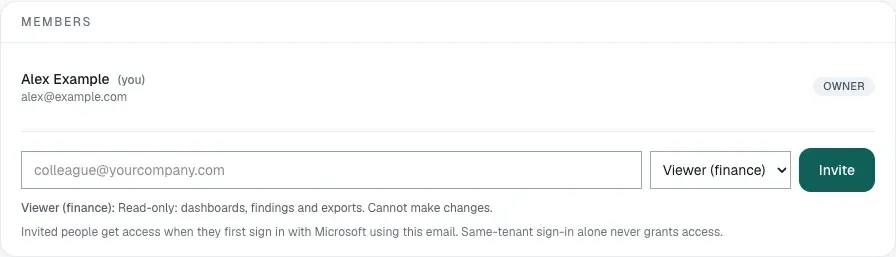
Isolated documentation workspace with fictional data. No live provider connection or customer data is shown.
Approve a company-domain request
Section titled “Approve a company-domain request”Eligible colleagues whose Microsoft sign-in carries a verified company email can be matched to the workspace associated with that domain. This is governed by Who can join; it is not unrestricted access for everyone using Microsoft sign-in. Public email providers are not treated as a shared company domain.
When a request is pending, an Admin or Owner opens Settings > Members > Access requests, checks the identity and selects Approve or Decline. Approval grants Viewer access. Raise the role separately only when needed. Owners and Admins see a pending-request count beside Settings and a Review access requests banner on Overview and Settings in the active workspace. The banner opens Settings > Members > Access requests.
While waiting, the requester sees one access-status card on their empty Overview, with the request date and the names and email addresses of signed-in Owners and Admins who can review it. Contacts are shown only while the request is pending. Other pages show a compact link to the access-status page. The card explains that they do not need to connect Microsoft 365 again. They can contact an approver, leave and return later, or use Check approval status to read the current decision from the server. If approved, this button opens the company workspace and confirms their role and active workspace. An approved card also offers Open workspace.
Declining requires confirmation. The requester sees the declined status on the access-status page or their empty Overview and can ask their company’s LicenseMeter owner or IT team for an invitation if the decision was unexpected. If their active workspace already has data, Overview provides a compact link to the declined decision. Declined notices do not appear on other dashboard pages. Approver contact details are hidden after a decision. Acknowledge decision hides the declined notice across devices while retaining the decision. Signing in again does not create a new request. Colleagues matched to an existing company workspace do not receive connector onboarding prompts, including after acknowledging a decline. Approval and decline emails are sent when email is configured, but delivery is not required to check the decision in the app.
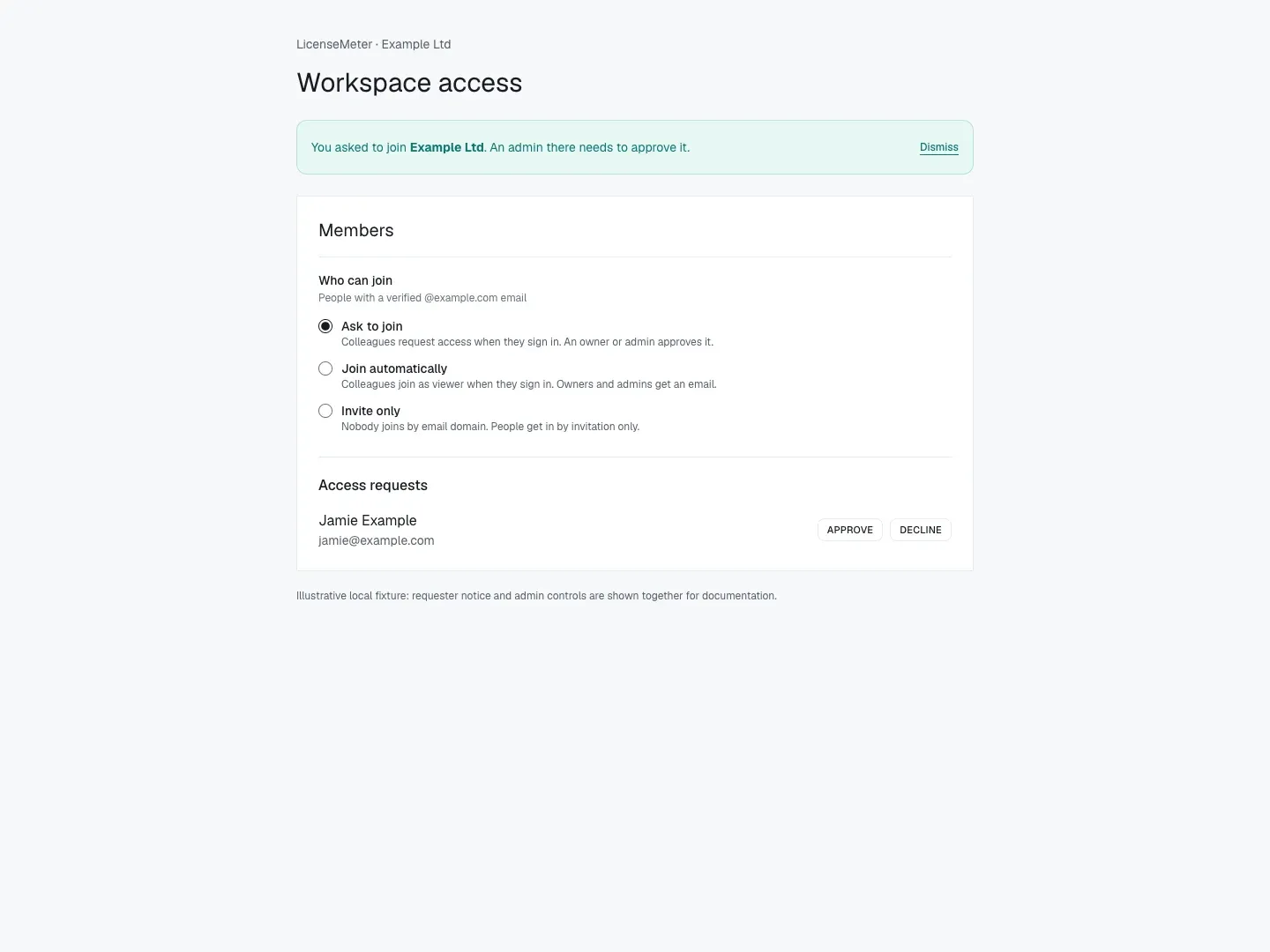
Illustrative local fixture using the application’s actual components. Requester and administrator states are shown together for explanation; they normally appear to different people. No request was sent.
Choose who can join
Section titled “Choose who can join”| Setting | Effect on eligible new colleagues |
|---|---|
| Ask to join | Creates an access request for an Admin or Owner to review. |
| Join automatically | Grants Viewer membership on qualifying first sign-in. |
| Invite only | Does not grant access by company domain; an invitation is required. |
Only an Owner can change this setting. It appears for the workspace that holds an eligible company domain, not for every workspace. If absent, use invitations. On a self-hosted installation, domain join only works once the sign-in app registration releases the verified email claim; see Microsoft application setup.
Join automatically exposes this workspace’s readable organizational data to eligible colleagues. To stop future automatic joins, restore Ask to join or Invite only. That change does not remove existing members; review those memberships separately.
Change or remove a member
Section titled “Change or remove a member”Use the member’s role selector and verify the saved result. To remove access, select Remove, then Confirm remove. Check the target before confirming. Removal affects this workspace’s access, not the person’s provider account or licenses. Re-invite the correct identity with the intended role to restore membership if necessary.
Keep an accessible Owner account before reducing Owner access. The application protects the last Owner from removal or demotion. Maintain a second authorized Owner when organizational policy requires continuity.
Troubleshoot access
Section titled “Troubleshoot access”| Situation | Next step |
|---|---|
| Invite email did not arrive | Check the address and spam folder, then use Resend. Where mail is disabled, sign in directly with the invited identity. |
| Invitation expired | Ask an authorized member to use Resend. |
| Approval notice remains | Check the decision in the correct workspace. Use Check approval status; the notice stays visible while the request is pending. |
| Removed or declined user cannot rejoin by domain | Use an explicit invitation if access should be granted again; repeated sign-in is not a new approval. |
| New user sees an empty workspace instead of company data | Verify email, membership, request state and active workspace. Do not connect the organization’s Microsoft tenant to a second workspace. |
| Microsoft tenant already connected elsewhere | Ask an Admin of the existing workspace for an invitation. |