

Sign in and find your workspace
Understand first sign-in, invitations, pending access requests and the empty dashboard.
Use the Microsoft work or school account you intend to use for LicenseMeter membership. Signing in and granting connector consent serve different purposes, even when the same account does both.
-
Leave the sample workspace if necessary
Section titled “Leave the sample workspace if necessary”If the sidebar identifies a Demo workspace, select Sign out. Demo users cannot save prices, connect providers or accept an invitation into a real workspace.
-
Open sign-in
Section titled “Open sign-in”Open LicenseMeter and select Start free, then the sign-in action in that area. You can also open the sign-in page directly.
Sign-in is Microsoft only: select the Microsoft button and sign in with your work or school account. Personal Microsoft accounts are not accepted. Complete whatever password and multi-factor steps your organization requires; those happen at Microsoft, and LicenseMeter never sees them.
Signing in asks only for your basic profile: your name, username and email address, together with the IDs of your account and your organization. It reads nothing in your organization’s Microsoft 365 and normally needs no administrator rights. If Microsoft shows Need admin approval, your organization does not let people approve apps themselves: ask an administrator to approve the LicenseMeter sign-in, which covers the basic profile only. Connecting Microsoft 365 for the license data is a separate, later step: a second Microsoft dialog for a separate app, LicenseMeter Connector, that a Global Administrator or Privileged Role Administrator approves.
What Microsoft asks the first time
Section titled “What Microsoft asks the first time”The first time you sign in, Microsoft may show a Permissions requested dialog for the application LicenseMeter Sign-in, published by Ugurlabs UG (haftungsbeschränkt) with a verified badge. It asks for your own basic details only:
Line in Microsoft’s dialog What it covers Sign in as you Confirms your identity to LicenseMeter View your basic profile Your name and username View your email address Your work email address Microsoft can word or group these lines slightly differently, and may add Maintain access to data you have given it access to, which keeps the sign-in working and grants no additional data. Accepting applies to your account only and adds an enterprise application named LicenseMeter Sign-in (application ID
782cdfc5-6fdb-43a6-85b4-2940baf26ac5) to your organization’s tenant. It does not connect Microsoft 365 data. If the dialog shown during sign-in names another application or publisher, or asks to read other people’s data, cancel. Only an instant scan that you start yourself asks for organization-wide read permissions under this application name.If Microsoft shows Need admin approval or Approval required instead, your organization does not let users approve applications themselves. Send the request from that screen if it offers one. Your administrator then finds it in the Entra admin center under Enterprise apps > Admin consent requests. If no request option is offered, ask an administrator to sign in to LicenseMeter once and select Consent on behalf of your organization in Microsoft’s dialog. After that, LicenseMeter Sign-in appears under Enterprise applications. This approval covers sign-in only. It is not the connector’s admin consent, which is a separate, later decision. Microsoft documents the process in Review admin consent requests.
Use the invited work account for an invitation. Do not assume that two accounts reach the same workspace, even when they share an email address. LicenseMeter recognizes you by your Microsoft account, not by the address you type.
If you see Request scan access rather than a working sign-in action, use Support or contact your installation’s operator. The sample workspace remains a way to explore. Do not grant Microsoft consent to solve a missing LicenseMeter login option.
-
Identify which workspace you entered
Section titled “Identify which workspace you entered”Sign-in resolves invitations and existing memberships first. For a new account, an email that Microsoft marks as verified for your company’s domain may join an existing workspace or request approval according to its owner’s settings. If it does not join, the account gets its own empty workspace.
What you see Meaning Next step Your organization’s populated dashboard You have membership and it already contains data Check your role, freshness and prices before reviewing findings Add your Microsoft 365 directory The active workspace has no Microsoft assessment yet Connect Microsoft or import authorized exports You asked to join… An admin there needs to approve it Your access request is pending Ask that workspace’s Admin or Owner to review Settings > Members > Access requests An unfamiliar or empty workspace despite an invitation You may be signed in with another account, the invite may have expired, or another workspace is active Check the account, switch workspace, or ask for Resend While approval is pending, your own workspace does not contain the other workspace’s organizational data. Dismissing the notice only hides it in that browser; it does not cancel or approve the request. After approval, refresh and use the workspace switcher when available.
-
Check the workspace name and role
Section titled “Check the workspace name and role”On desktop, the workspace is in the sidebar. On mobile, open the menu. The switcher appears when you can access more than one workspace; your role applies separately in each. Viewer access is enough for reports, but a workspace Admin or Owner must maintain the connection and prices.
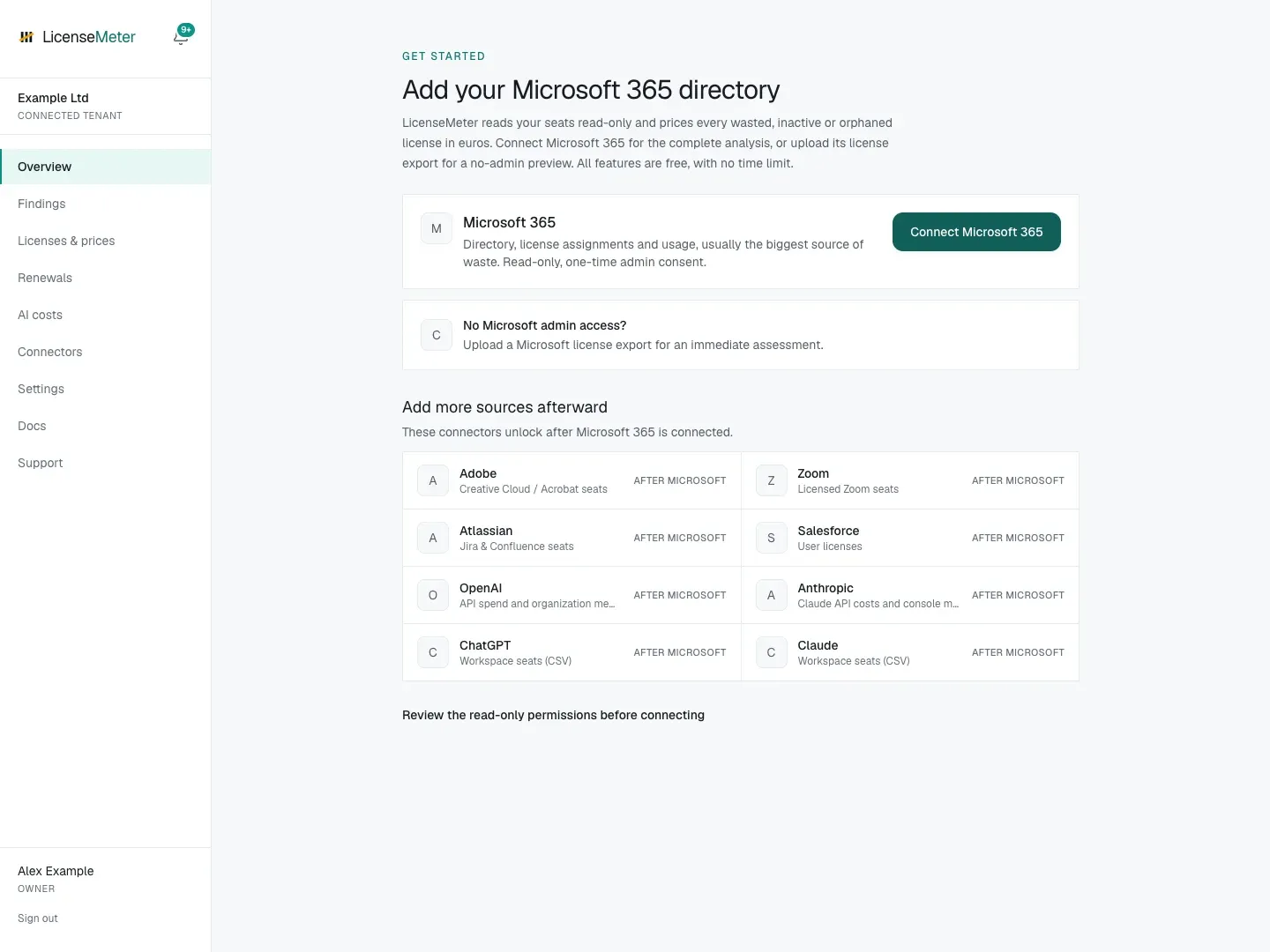
Isolated LicenseMeter documentation workspace with fictional data. No live provider connection or customer data is shown.
The sidebar’s Connected tenant label identifies a non-demo workspace; it is not proof that a provider connection or first sync has succeeded. Use the connector status and first-sync checklist to verify that.
If a colleague invited you
Section titled “If a colleague invited you”Invitations expire after 14 days if unclaimed. Ask an authorized member to use Settings > Members > Resend for an expired invitation. Resending restarts the expiry period. Where invitation email is unavailable, sign in to the same installation with the exact invited work account. The membership guide explains administrator actions and domain-join options.
Next: Choose the Microsoft connection path, or review existing data.